

Google Analytics 4 has replaced Universal Analytics, and you need to get up to speed fast. This comprehensive GA4 tutorial takes you from complete beginner to advanced user, showing you exactly how to set up, configure, and master Google Analytics 4 for your website or business.
This Google Analytics 4 guide is perfect for business owners, marketers, analysts, and anyone who wants to understand their website traffic and user behavior. You don't need any prior analytics experience – we'll walk you through everything step by step.
You'll learn how to set up your GA4 property from scratch, including connecting your website and configuring the essential settings that ensure you're collecting accurate data. We'll also dive deep into GA4 reports, showing you how to read the new interface, create custom reports, and use advanced features like audiences and conversions to optimize your marketing efforts.
By the end of this GA4 step by step tutorial, you'll confidently navigate Google Analytics 4, make data-driven decisions for your business, and unlock insights that help you grow your online presence.
Understanding Google Analytics GA4 Fundamentals

Key Differences Between Universal Analytics and GA4
You'll notice significant changes when switching from Universal Analytics to GA4. The most fundamental shift involves how data gets collected and processed. Universal Analytics relied on sessions and pageviews as its primary metrics, while GA4 adopts an event-based tracking model that captures every interaction as an event.
Your reporting structure looks completely different too. Where Universal Analytics separated goals, events, and e-commerce into distinct categories, GA4 treats everything as events with parameters. This means your conversion tracking becomes more flexible, but you'll need to adjust how you think about measuring success.
| Universal Analytics | GA4 |
|---|---|
| Session-based tracking | Event-based tracking |
| Limited cross-platform tracking | Enhanced cross-platform capabilities |
| Cookie-dependent | Privacy-focused with cookieless options |
| Static audience segments | Dynamic audience building |
| Limited machine learning | AI-powered insights and predictions |
Privacy controls represent another major change. GA4 gives you better tools for handling user consent and data collection preferences, which becomes crucial as privacy regulations tighten worldwide.
Benefits of Upgrading to GA4 for Your Business
Your business gains powerful advantages by making the switch to GA4. Cross-platform tracking capabilities allow you to follow customer journeys across websites, mobile apps, and other digital touchpoints seamlessly. This unified view helps you understand your complete customer experience rather than isolated interactions.
Machine learning integration provides predictive insights you couldn't access before. GA4's algorithms can identify users likely to convert, predict revenue from specific customer segments, and detect unusual traffic patterns automatically. These insights help you make proactive decisions instead of reactive ones.
Enhanced audience building features let you create dynamic segments based on predicted behavior, not just past actions. You can target users who might churn, identify high-value prospects, and personalize experiences based on likelihood to engage.
Improved measurement flexibility means you can track custom events without complex implementation. Whether you're monitoring video engagement, file downloads, or scroll depth, GA4's event-based model adapts to your specific business needs without requiring extensive technical setup.
Essential GA4 Terminology and Concepts
Events form the foundation of GA4 data collection. Every user interaction becomes an event, from page views to button clicks to purchases. Each event can include parameters that provide additional context about the interaction.
Parameters add details to your events. For example, a "purchase" event might include parameters for transaction value, currency, and item details. These parameters help you analyze the specifics of user behavior beyond basic interaction counts.
Conversions in GA4 are simply events you mark as important to your business. Unlike Universal Analytics' rigid goal structure, you can designate any event as a conversion and change this designation anytime.
Audiences represent groups of users who share specific characteristics or behaviors. You can build audiences based on demographics, events, or predicted metrics like purchase probability.
Data Streams connect your data sources to GA4. You'll create separate streams for your website, iOS app, and Android app, allowing comprehensive cross-platform analysis.
Engagement Rate replaces bounce rate as a key metric. It measures the percentage of engaged sessions, where users stayed for more than 10 seconds, triggered a conversion event, or viewed multiple pages.
GA4 Data Collection Model and Event-Based Tracking
Your data collection strategy changes fundamentally with GA4's event-based approach. Instead of organizing data into rigid categories, GA4 treats every interaction as an event with customizable parameters. This flexibility lets you capture nuanced user behavior that traditional pageview tracking might miss.
GA4 automatically collects enhanced measurement events without additional code. These include scroll tracking, outbound clicks, site search, video engagement, and file downloads. You can toggle these features on or off based on your analysis needs.
Custom event creation becomes straightforward through the interface or Google Tag Manager. You define events that matter to your business, such as newsletter signups, product comparisons, or support ticket submissions. Each custom event can include up to 25 parameters for detailed analysis.
User identification works differently too. GA4 uses multiple identifiers including Google signals, User-ID, and device IDs to create a more complete picture of user journeys. This approach helps bridge gaps when users switch devices or clear cookies.
Data modeling fills in gaps where direct measurement isn't possible due to privacy settings or technical limitations. GA4's machine learning algorithms estimate user behavior patterns while respecting privacy controls, giving you more complete insights than traditional analytics could provide.
Setting Up Your GA4 Property From Scratch

Creating Your GA4 Account and Property
You'll need a Google account to get started with GA4. Head over to analytics.google.com and click "Start measuring" to begin your GA4 setup. If you already have a Universal Analytics account, don't worry – you can create a new GA4 property alongside your existing one.
When setting up your account, you'll need to provide your country, business name, and select your industry category. Choose your data sharing settings carefully – these control how Google uses your data for product improvements and benchmarking. You can always adjust these later in your account settings.
For your property setup, enter your website name and select your time zone and currency. This step is crucial because changing these settings later can affect your historical data. Make sure you pick the timezone where your business operates, not necessarily where your servers are located.
Installing GA4 Tracking Code on Your Website
Your GA4 tracking implementation depends on your website platform. You'll receive a Global Site Tag (gtag.js) code snippet that needs to go in the <head> section of every page you want to track.
For WordPress users: Install the Google Analytics plugin or use a tag management plugin like Site Kit by Google. These plugins make installation much easier and reduce the chance of errors.
For custom websites: Copy the GA4 tracking code and paste it directly into your site's header template. Make sure it appears before the closing </head> tag on every page.
For e-commerce platforms: Most platforms like Shopify, WooCommerce, or BigCommerce have built-in GA4 integrations or dedicated apps. Use these platform-specific solutions when available as they often include enhanced e-commerce tracking automatically.
If you're using Google Tag Manager, you can deploy GA4 through GTM instead of hardcoding. Create a new GA4 Configuration tag in GTM and set it to fire on all pages.
Configuring Data Streams for Multiple Platforms
Data streams are how GA4 collects information from different platforms. You can track websites, iOS apps, and Android apps all within the same property. This unified approach gives you a complete picture of user interactions across all your digital touchpoints.
Start by setting up your web data stream first. Enter your website URL and give your stream a descriptive name. You'll notice GA4 automatically enables enhanced measurement features like page views, scrolls, outbound clicks, and site search tracking.
For mobile apps, you'll need separate data streams for iOS and Android. Each app requires its own Firebase project and specific SDK implementation. The setup process involves:
-
Creating a Firebase project
-
Adding your app to the Firebase project
-
Downloading the configuration file
-
Installing the GA4 SDK in your app
Cross-platform tracking becomes powerful when you implement User-ID or Google signals. This helps GA4 connect user sessions across devices and platforms, giving you insights into the complete user journey.
Setting Up Enhanced Measurement Features
Enhanced measurement in GA4 automatically tracks common user interactions without requiring additional code. You'll find these settings in your data stream configuration under "Enhanced measurement."
Here's what gets tracked automatically when enabled:
| Feature | What It Tracks |
|---|---|
| Page views | Every page load on your site |
| Scrolls | Users who scroll 90% down a page |
| Outbound clicks | Clicks to external websites |
| Site search | Internal search queries |
| Video engagement | YouTube video interactions |
| File downloads | PDF, document downloads |
You can toggle these features on or off based on your tracking needs. For most websites, keeping all enhanced measurement features enabled provides valuable insights without any extra work.
If you need custom event tracking beyond these automatic features, you'll need to implement custom events using gtag() functions or Google Tag Manager. Common custom events include form submissions, button clicks, or specific user actions relevant to your business goals.
Verifying Your Installation is Working Correctly
After installing your GA4 tracking code, you need to verify everything works properly. The Real-time reports in GA4 show you live data as it comes in, making them perfect for testing.
Open your website in a new browser tab and navigate through a few pages. Then check your GA4 Real-time reports – you should see your visit appearing within seconds. If you don't see any data after 10-15 minutes, double-check your tracking code installation.
Use the GA4 DebugView for detailed troubleshooting. Enable debug mode by adding ?debug_mode=true to your website URL or by setting the debug_mode parameter to true in your gtag configuration. This shows you exactly what events are being sent to GA4 and helps identify any tracking issues.
The Google Analytics Debugger Chrome extension is another helpful tool. It logs detailed information about your GA4 implementation directly in your browser's console, making it easier to spot problems with your setup.
Test different user scenarios: mobile devices, different browsers, and various user actions on your site. Pay special attention to any custom events you've set up to make sure they're firing correctly. Your GA4 implementation should capture data consistently across all platforms and devices your users might use.
Navigating the GA4 Interface Like a Pro

Mastering the New GA4 Dashboard Layout
When you first open your GA4 property, you'll notice the interface looks quite different from Universal Analytics. The left sidebar serves as your main navigation hub, with key sections like Home, Reports, Explore, and Advertising clearly organized. Your Home dashboard provides an at-a-glance view of your most important metrics, displaying recent performance data and automated insights that Google's machine learning generates for you.
The top navigation bar includes your account and property selectors, along with the date range picker that controls what data you're viewing. You can quickly switch between different time periods or compare current performance to previous periods using the comparison toggle. The search functionality in the top bar lets you find specific reports or metrics without clicking through multiple menus.
Your customization options are extensive - you can modify the Home dashboard by adding or removing cards that matter most to your business goals. The interface adapts to your screen size, making it equally functional whether you're working on a desktop or checking metrics on your mobile device during your commute.
Understanding the Reports Snapshot Overview
Your Reports section in GA4 tutorial experiences centers around the snapshot overview, which replaces the traditional dashboard view. This overview automatically highlights your most significant data points, showing you what's happening with your website or app performance right now. You'll see key metrics like active users, new users, and revenue prominently displayed at the top.
The snapshot intelligently surfaces insights about unusual changes in your data - whether that's a spike in traffic from a particular source or a drop in conversion rates. These automated insights save you time by pointing out trends you might miss when manually reviewing reports. You can click on any insight card to dive deeper into the underlying data.
Below the main metrics, you'll find breakdowns by audience, acquisition channels, and user behavior patterns. This GA4 for beginners approach means you don't need to hunt through multiple reports to understand your basic performance - everything important is surfaced in one view.
Accessing Real-Time Data and Insights
Your real-time reporting capabilities in GA4 give you immediate visibility into current website activity. The Real-time report shows you exactly how many people are on your site right now, what pages they're viewing, and which traffic sources are driving the most active users. This information updates every few seconds, making it perfect for monitoring campaign launches or checking if your website is experiencing issues.
You can see geographic data showing where your current visitors are located, which devices they're using, and what events they're triggering on your site. The real-time data proves invaluable when you're running time-sensitive promotions or want to see immediate results from social media posts or email campaigns.
The conversions section in real-time reports lets you watch goals and purchases happen as they occur. You can track specific events like form submissions, downloads, or purchases in real-time, giving you instant feedback on your marketing efforts. This immediate data access helps you make quick decisions about ad spend adjustments or content modifications while campaigns are still active.
Configuring Essential GA4 Settings for Accurate Data
Setting Up Conversion Goals and Events
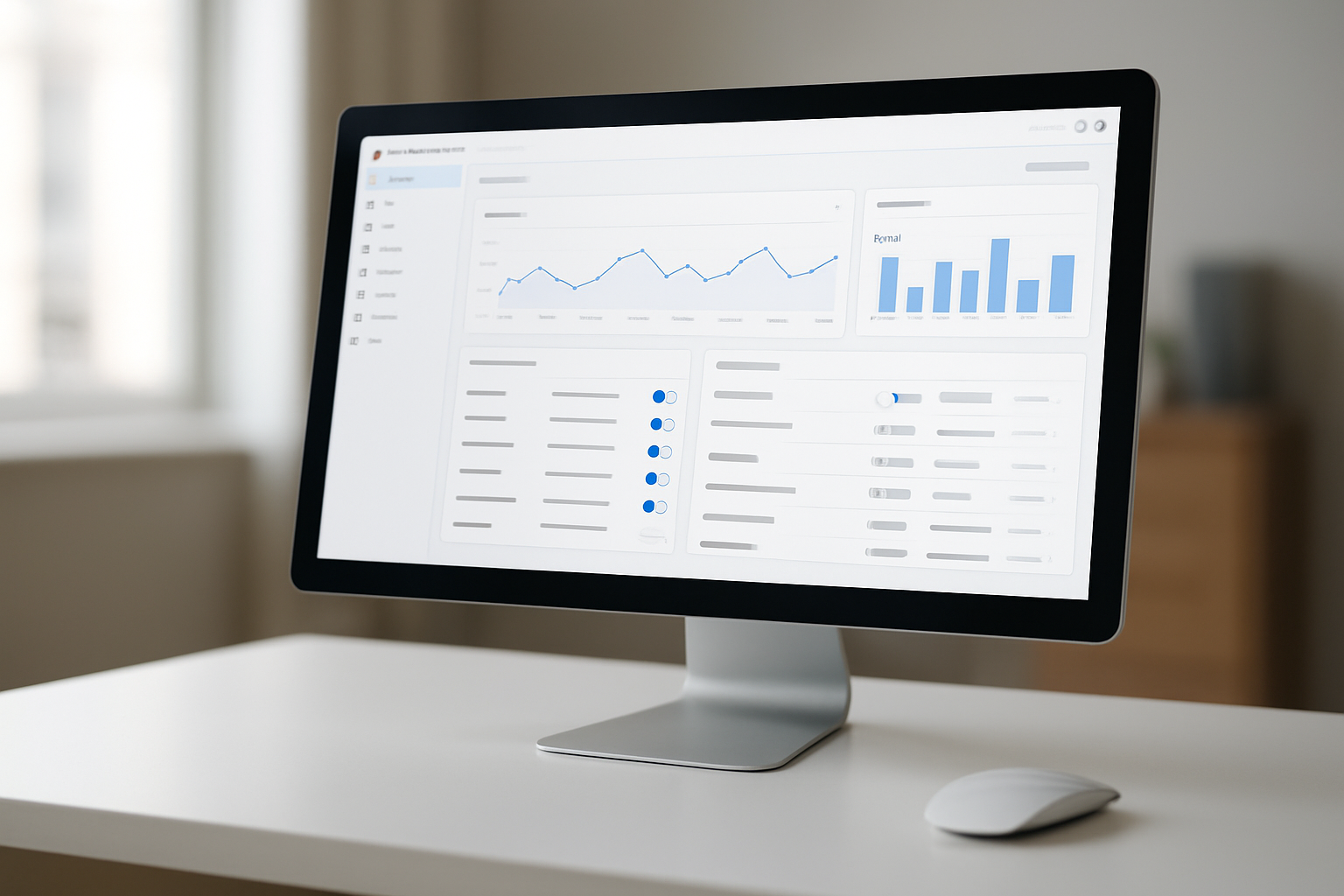
Your GA4 setup isn't complete without properly configured conversion goals and events. Start by identifying what actions matter most to your business - whether that's purchases, form submissions, video views, or newsletter signups. Navigate to the "Configure" section in your GA4 interface and select "Events."
You'll see GA4 automatically tracks several events, but you need to mark the important ones as conversions. Click the toggle switch next to events like "purchase" or "form_submit" to designate them as conversion events. For custom conversions, create new events by clicking "Create Event" and defining your parameters.
When setting up custom events, use clear, descriptive names that follow GA4's naming conventions. Avoid spaces and special characters - stick to underscores instead. Your event names should be consistent across your entire tracking implementation to ensure accurate reporting.
Remember that GA4 allows up to 30 conversion events per property, so choose wisely. Focus on actions that directly impact your business goals rather than vanity metrics. You can always adjust these later as your business priorities evolve.
Configuring Audience Definitions for Better Targeting
Creating well-defined audiences in GA4 helps you understand different user segments and optimize your marketing efforts. Head to the "Configure" section and select "Audiences" to start building custom audience segments based on user behavior, demographics, and engagement patterns.
Start with basic audiences like "Purchasers," "High-Value Users," or "Frequent Visitors." Use conditions such as "Users who triggered the purchase event" or "Users whose session duration was greater than 3 minutes." You can combine multiple conditions using "and/or" logic to create more specific segments.
GA4's predictive audiences are particularly powerful for identifying users likely to churn or make purchases within the next 7 days. Enable these by ensuring you have sufficient data volume - typically requiring at least 1,000 users who completed the target event in the past 28 days.
Consider creating audiences based on:
-
User engagement levels (session duration, pages viewed)
-
Traffic sources (organic search, paid ads, social media)
-
Geographic locations
-
Device types or operating systems
-
Custom events specific to your business
These audiences become valuable for remarketing campaigns and understanding how different user segments interact with your site.
Implementing Custom Dimensions and Metrics
Custom dimensions and metrics give you deeper insights into user behavior specific to your business needs. While GA4 provides many built-in dimensions, you'll often need custom ones to track unique aspects of your website or app.
To create custom dimensions, go to "Configure" > "Custom Definitions" > "Custom Dimensions." You can track up to 25 custom dimensions in the standard GA4 property. Choose dimension names that clearly describe what you're measuring, like "membership_tier," "content_category," or "user_subscription_status."
Each custom dimension requires:
-
Dimension name: A clear, descriptive label
-
Scope: User, event, or item level
-
Description: What this dimension measures
-
Event parameter: The parameter name you'll send with your events
For custom metrics, follow a similar process but focus on numerical values you want to measure. These might include "video_completion_rate," "quiz_score," or "product_rating." Custom metrics help you track business-specific KPIs that standard GA4 metrics don't cover.
Test your custom dimensions and metrics thoroughly before full implementation. Send test events and verify that data appears correctly in your reports. Remember that it can take up to 24 hours for custom dimensions to appear in your GA4 interface.
Setting Up Data Retention and Privacy Controls
Proper data retention and privacy settings protect your users' information while ensuring compliance with regulations like GDPR and CCPA. Navigate to "Data Settings" > "Data Retention" to configure how long GA4 stores your user and event data.
You have two main retention periods to set:
-
User data: Choose between 2 months and 14 months
-
Event data: Automatically set to 14 months maximum
Consider your business needs when selecting retention periods. Longer retention allows for better year-over-year analysis, but shorter periods reduce privacy risks and storage costs. Most businesses find 14 months sufficient for comprehensive analysis while maintaining reasonable privacy standards.
Enable data deletion requests by setting up the User Deletion API if you need to comply with "right to be forgotten" requests. This allows you to remove specific user data when legally required.
Configure your data sharing settings carefully. Review options for Google products, benchmarking, and technical support. Disable sharing options that don't align with your privacy policy or business requirements.
Set up IP anonymization if required by your privacy policy or local regulations. While GA4 doesn't store full IP addresses by default, you can enable additional anonymization measures for extra privacy protection.
Review your consent mode settings if you operate in regions with strict privacy laws. This ensures GA4 respects user consent choices and adjusts data collection accordingly.
Mastering GA4 Reports for Data-Driven Decisions

Analyzing Acquisition Reports to Optimize Traffic Sources
Your acquisition reports in GA4 show you exactly where your visitors are coming from and how well each traffic source performs. You'll find these reports under the "Reports" section in the left navigation menu, then click on "Acquisition."
The overview section gives you a quick snapshot of your top traffic sources. You can see organic search, direct traffic, social media, paid advertising, and referrals all broken down with key metrics like users, sessions, and conversion rates. Pay close attention to the "User acquisition" and "Traffic acquisition" reports - they show different perspectives on how people find your site.
When analyzing your acquisition data, focus on these key areas:
-
Source/Medium combinations: Look for your highest-performing traffic sources
-
Conversion rates by channel: Identify which sources bring the most valuable traffic
-
Cost-per-acquisition: For paid channels, calculate your return on investment
-
New vs. returning users: Understand which channels drive discovery versus loyalty
Use the comparison feature to analyze performance over different time periods. You can spot trends and seasonal patterns that help you allocate your marketing budget more effectively. The attribution reports also show you how different channels work together in the customer journey.
Understanding Engagement Reports for User Behavior Insights
Your engagement reports reveal how visitors interact with your website content. These GA4 reports help you understand what keeps people on your site and what drives them away.
The "Pages and screens" report shows your most popular content. Sort by page views, unique page views, and average engagement time to identify your star performers. Look for pages with high bounce rates - they might need content improvements or better internal linking.
Your "Events" report tracks all the interactions happening on your site. GA4 automatically tracks several events like:
-
Page views: Basic navigation tracking
-
Scroll events: How far down pages people read
-
Outbound clicks: Links to external sites
-
File downloads: PDF downloads, documents
-
Video engagement: Play, pause, completion rates
The "Conversions" section shows which events you've marked as important business actions. Set up conversion events for newsletter signups, contact form submissions, or product purchases to track your most valuable user behaviors.
Use the "Audience" reports to segment your engaged users. You can create audiences based on engagement metrics and use them for remarketing campaigns or deeper analysis.
Leveraging Monetization Reports for Revenue Tracking
Your monetization reports are essential for understanding how your website generates revenue. Whether you're running an e-commerce store or tracking lead values, these GA4 reports give you detailed insights into your financial performance.
The "Ecommerce purchases" report shows your sales data broken down by products, categories, and customer segments. You can see which products are bestsellers, average order values, and purchase conversion rates. Use the item promotion reports to track how your marketing campaigns affect specific product sales.
For subscription businesses or lead generation sites, set up custom conversion values. Assign monetary values to your lead forms, newsletter signups, or consultation requests. This helps you calculate the true value of your traffic sources and marketing campaigns.
Key metrics to monitor include:
-
Total revenue: Your overall earnings from the website
-
Revenue per user: How much each visitor is worth on average
-
Purchase conversion rate: Percentage of visitors who buy something
-
Average order value: Typical transaction size
-
Product performance: Which items drive the most revenue
The cohort analysis feature shows you customer lifetime value over time. You can see how much revenue you generate from users acquired in different months, helping you optimize your customer acquisition strategy.
Using Retention Reports to Improve User Loyalty
Your retention reports in GA4 show you how well you keep visitors coming back to your site. These insights are crucial for building a loyal audience and improving long-term business growth.
The "User retention" report displays cohort data showing what percentage of users return to your site after their first visit. You'll see retention rates for 1 day, 7 days, 14 days, and 30 days after the initial visit. Strong retention rates indicate engaging content and a good user experience.
Look for patterns in your retention data. If you see big drops after the first week, your onboarding process might need work. If monthly retention is low, you might not be providing enough ongoing value to keep people interested.
Use the "Lifetime value" report to understand how user behavior changes over time. You can see how engagement metrics like session duration and pages per session evolve as users become more familiar with your site. This helps you optimize the user journey for better long-term engagement.
Create retention-focused strategies based on your data:
-
Email marketing: Re-engage users who haven't returned recently
-
Content recommendations: Show personalized content to returning visitors
-
Loyalty programs: Reward frequent visitors with special offers
-
Push notifications: Remind mobile users about new content or features
Track how changes to your website affect retention rates. Test new features, content formats, or user experience improvements and measure their impact on bringing people back.
Creating Custom Reports and Explorations

Building Custom Reports for Specific Business Needs
Your business has unique goals that standard GA4 reports might not fully address. Custom reports in GA4 let you create tailored views that focus on the metrics and dimensions most relevant to your specific objectives. You can build these reports through the Library section in your GA4 interface.
Start by clicking "Library" in the left navigation, then select "Create new report." Choose between a detail report or a summary report based on your needs. Detail reports show granular data with multiple dimensions, while summary reports provide high-level overviews with key metrics.
When building your custom report, select dimensions that align with your business questions. For an e-commerce site, you might combine "Item name" with "Source/Medium" to see which products perform best from different traffic sources. For lead generation, pair "Event name" with "Country" to understand where your form submissions come from.
Add metrics that matter to your bottom line. Revenue, conversion rates, and engagement metrics often provide the most actionable insights. You can also apply filters to focus on specific segments, like mobile users or traffic from particular campaigns.
Save your custom reports to access them quickly in the future. Share them with team members who need the same data views, creating consistency across your organization's GA4 reporting.
Using Exploration Tools for Advanced Analysis
GA4's Exploration tools give you powerful ways to dig deeper into your data beyond standard reports. These tools work like a flexible canvas where you can manipulate dimensions, metrics, and segments to uncover insights that pre-built reports might miss.
Access Explorations through the "Explore" section in your GA4 property. You'll find several exploration types, each designed for different analytical needs:
Free Form Exploration acts as your go-to tool for flexible analysis. Drag and drop dimensions into rows and columns, add metrics as values, and apply filters to slice your data exactly how you want it. This works perfectly when you need to answer specific questions about user behavior or campaign performance.
Cohort Exploration helps you understand user retention over time. Set up cohorts based on acquisition date or first interaction, then track how these groups behave in subsequent weeks or months. This proves invaluable for subscription businesses or apps focusing on user engagement.
Funnel Exploration visualizes your conversion paths step by step. Define the steps users should take, from initial visit to final conversion, and see where people drop off. You can compare different segments or traffic sources to identify optimization opportunities.
Segment Overlap shows how different user segments intersect. Compare demographics, behaviors, or custom segments to find overlapping audiences for targeted marketing campaigns.
Setting Up Automated Insights and Alerts
GA4's Intelligence feature automatically surfaces important changes and trends in your data, saving you from manually checking reports every day. You can find these insights in the "Insights and recommendations" section of your property.
Google's machine learning algorithms scan your data continuously, looking for significant increases, decreases, or anomalies. When something noteworthy happens, like a sudden spike in traffic from a new country or a drop in conversion rates, GA4 creates an insight card explaining what changed.
You can customize which insights you want to see by creating custom insights. Click "View all insights" and then "Create custom insight." Set up parameters for the metrics you care about most. For example, you might want to know when your e-commerce revenue changes by more than 20% week-over-week, or when traffic from social media increases significantly.
While GA4 doesn't have traditional email alerts like Universal Analytics, you can create custom alerts through Google Analytics Intelligence API or third-party tools that connect to your GA4 data. Many businesses use tools like Zapier or custom scripts to monitor specific metrics and send notifications when thresholds are met.
Set up regular data exports to Google Sheets or BigQuery to build your own monitoring system. This approach gives you more control over alert conditions and notification methods.
Exporting Data for External Analysis
Sometimes you need to take your GA4 data outside Google's ecosystem for deeper analysis or reporting in other tools. GA4 offers several export options to meet different needs and technical requirements.
Consider data sampling limits when exporting large datasets through standard reports. BigQuery export provides complete, unsampled data, making it the best choice for comprehensive analysis of high-traffic websites.
Advanced GA4 Features for Marketing Optimization

Implementing Cross-Platform Attribution Models
Your customers don't follow a straight line from first click to purchase. They might discover your brand on Instagram, research on your website, then complete their purchase through a Google Ad. GA4's cross-platform attribution models help you see the complete customer journey across all touchpoints.
Start by navigating to Advertising > Attribution in your GA4 interface. You'll find several attribution models to choose from:
-
Data-driven attribution: Your best bet for accurate insights, using machine learning to assign credit based on actual conversion paths
-
Last click: Gives all credit to the final interaction before conversion
-
First click: Credits the initial touchpoint that started the customer journey
-
Linear: Distributes credit equally across all touchpoints
-
Time decay: Gives more credit to interactions closer to conversion
To set up cross-platform attribution, connect your Google Ads account and ensure you're collecting data from all relevant platforms. Enable cross-platform reporting by linking your mobile app data with web data using User ID or Google signals.
Your attribution reports will show you which channels work together to drive conversions. You might discover that social media rarely gets last-click credit but plays a crucial role in starting customer journeys.
Using Predictive Metrics for Future Planning
GA4's predictive metrics take your data analysis from reactive to proactive. These AI-powered insights help you identify high-value customers before they convert and spot potential churn risks early.
You'll find three key predictive metrics in your GA4 reports:
Purchase probability shows the likelihood that users who visited in the last 28 days will complete a purchase in the next 7 days. This metric appears automatically once you have enough conversion data (typically 1,000 users and 1,000 conversions).
Churn probability identifies users likely to stop engaging with your business. You can create audiences based on churn risk and target them with retention campaigns.
Revenue prediction estimates how much revenue specific user segments will generate over the next 28 days.
Access these metrics through Explore reports or use them to build predictive audiences. For example, create an audience of users with high purchase probability but who haven't bought yet, then target them with special offers.
Keep in mind that predictive metrics need sufficient data to work accurately. If you don't see these metrics yet, focus on collecting more user and conversion data first.
Integrating GA4 with Google Ads for Better ROI
Linking GA4 with Google Ads unlocks powerful optimization opportunities that can dramatically improve your advertising ROI. This integration gives you deeper insights into how your ads perform beyond basic click-through rates.
Connect your accounts by going to Admin > Product Links > Google Ads in GA4. Once linked, you'll import your GA4 audiences and conversions directly into Google Ads for better targeting and bidding.
Your integrated setup enables several powerful features:
Enhanced conversion tracking gives you more accurate conversion data by combining Google Ads click data with GA4 website behavior. This helps Google's algorithms optimize your campaigns more effectively.
Imported conversions from GA4 provide richer conversion data than standard Google Ads tracking. You can track micro-conversions, engagement events, and custom goals that matter to your business.
Audience sharing lets you target GA4 audiences in your Google Ads campaigns. Create audiences based on user behavior, demographics, or predictive metrics, then target them with relevant ads.
Attribution insights show you how different Google Ads campaigns and keywords contribute to conversions across the entire customer journey, not just last-click attribution.
Use the Google Ads reports in GA4 to analyze campaign performance, identify top-performing ad groups, and discover opportunities for budget reallocation.
Setting Up Enhanced Ecommerce Tracking
Enhanced ecommerce tracking transforms your GA4 from a basic analytics tool into a powerful business intelligence platform. You'll track every step of your customer's shopping journey, from product views to completed purchases.
Start by implementing the recommended ecommerce events in your GA4 setup:
| Event Name | Purpose | Key Parameters |
|---|---|---|
| view_item | Track product page views | item_id, item_name, currency, value |
| add_to_cart | Monitor cart additions | item_id, item_name, currency, value |
| begin_checkout | Track checkout starts | currency, value, items |
| purchase | Record completed sales | transaction_id, currency, value, items |
Your ecommerce implementation should include item-level data for detailed analysis. This means sending product categories, brands, variants, and other relevant details with each event.
Enable enhanced ecommerce reports by going to Reports > Monetization. You'll see detailed breakdowns of:
-
Product performance by revenue, quantity, and conversion rate
-
Shopping behavior from product views through checkout completion
-
Checkout abandonment rates and funnel analysis
-
Sales by product category, brand, and individual items
Don't forget to set up ecommerce audiences for remarketing. Create segments like "high-value customers," "cart abandoners," or "frequent buyers" to power your marketing campaigns.
Your enhanced ecommerce data also feeds into GA4's predictive metrics, helping you identify customers likely to make repeat purchases or generate high lifetime value.
Conclusion:

You now have the complete roadmap to transform from a GA4 beginner into a confident analyst who can navigate Google's most powerful analytics platform. From setting up your first property to creating custom reports and exploring advanced features, you've learned how to turn raw data into actionable insights that drive your marketing decisions. The key is remembering that GA4 isn't just about collecting data—it's about understanding your audience's journey and optimizing their experience at every touchpoint.
Start implementing these techniques one step at a time, and don't feel overwhelmed by all the features available. Focus on mastering the fundamentals first, then gradually incorporate the advanced capabilities as your confidence grows. Your website's success depends on making data-driven decisions, and with these GA4 skills in your toolkit, you're ready to unlock the full potential of your digital analytics and watch your business thrive.
"If you found this article informative and useful, then kindly follow this blog and write a comment. Do check our full Blog for more such informative content. Also, check the articles on Digital Marketing published on the Quanta Aether Media Blogger Site."
- Local and International SEO,
- Digital Marketing
- Why Most Marketers are Choosing the Wrong AI Model for Marketing
- PPC Marketing Made Easy: A Complete Step-By-Step Guide to Launch Profitable Pay-Per-Click Campaigns (Beginner to Advance)
Comments
Post a Comment